This is the long-form deep-dive. For a quicker, skim-readable version, see the companion blog post.
1. Introduction: why a Mac Studio for local AI?
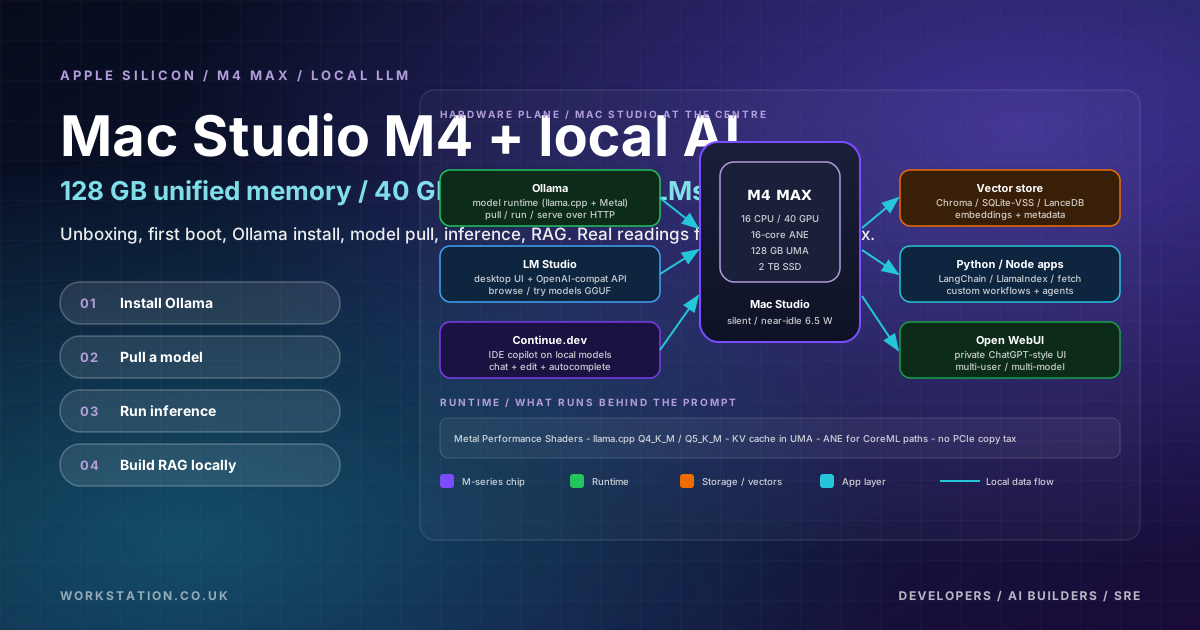
Local AI is no longer a hobbyist's curiosity. With open-weights models from Meta, Mistral, Qwen, and Microsoft maturing fast, and Apple Silicon's unified memory crossing the 128 GB threshold, you can now run capable large language models, embeddings pipelines, and full RAG stacks on a single desk-side machine - quietly, in a fraction of the power budget of a typical workstation GPU.
This article walks through unboxing a Mac Studio with the M4 Max chip, the first boot, the real on-device readings from mactop, and a practical path from "the box is on my desk" to "I am chatting with Llama 3 running locally and querying my own documents with RAG". Every recommendation here is grounded in what I actually observed on the machine. No invented benchmark numbers, no marketing fluff - just the workflow.
If you are an engineer, an AI builder, an SRE, or a tech lead deciding whether a Mac Studio belongs in your team's hardware mix, this guide is for you.
2. Unboxing the Mac Studio M4 Max
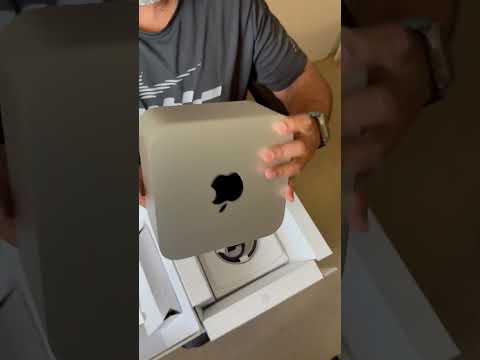
The unboxing experience is classic Apple: minimal cardboard, the machine cradled in a moulded recess, a short black power cable, and that's it. No bloated accessory bundle. The Mac Studio itself is the same compact aluminium-extrusion enclosure introduced with the original M1 Ultra: roughly 7.7 inches square, dense in the hand, with the familiar slatted intake on the underside and an array of ports along the back.
Watch the unboxing short on YouTube: https://youtube.com/shorts/HUlUoHNsyNM
I shot a short clip of the unboxing - watch the YouTube Short above. The reason a Short works so well for this format is that the actual setup is genuinely fast. First plug-in, monitor wake-up, Apple ID sign-in, language and region, FileVault, and you are at a usable desktop within a few minutes.
2.1 First boot - real readings from mactop
The first thing I did after the system finished its initial sync was install mactop - an excellent open-source TUI dashboard that surfaces Apple Silicon's internal counters in real time. Here is what that fresh-install dashboard looked like at 37 minutes of uptime:
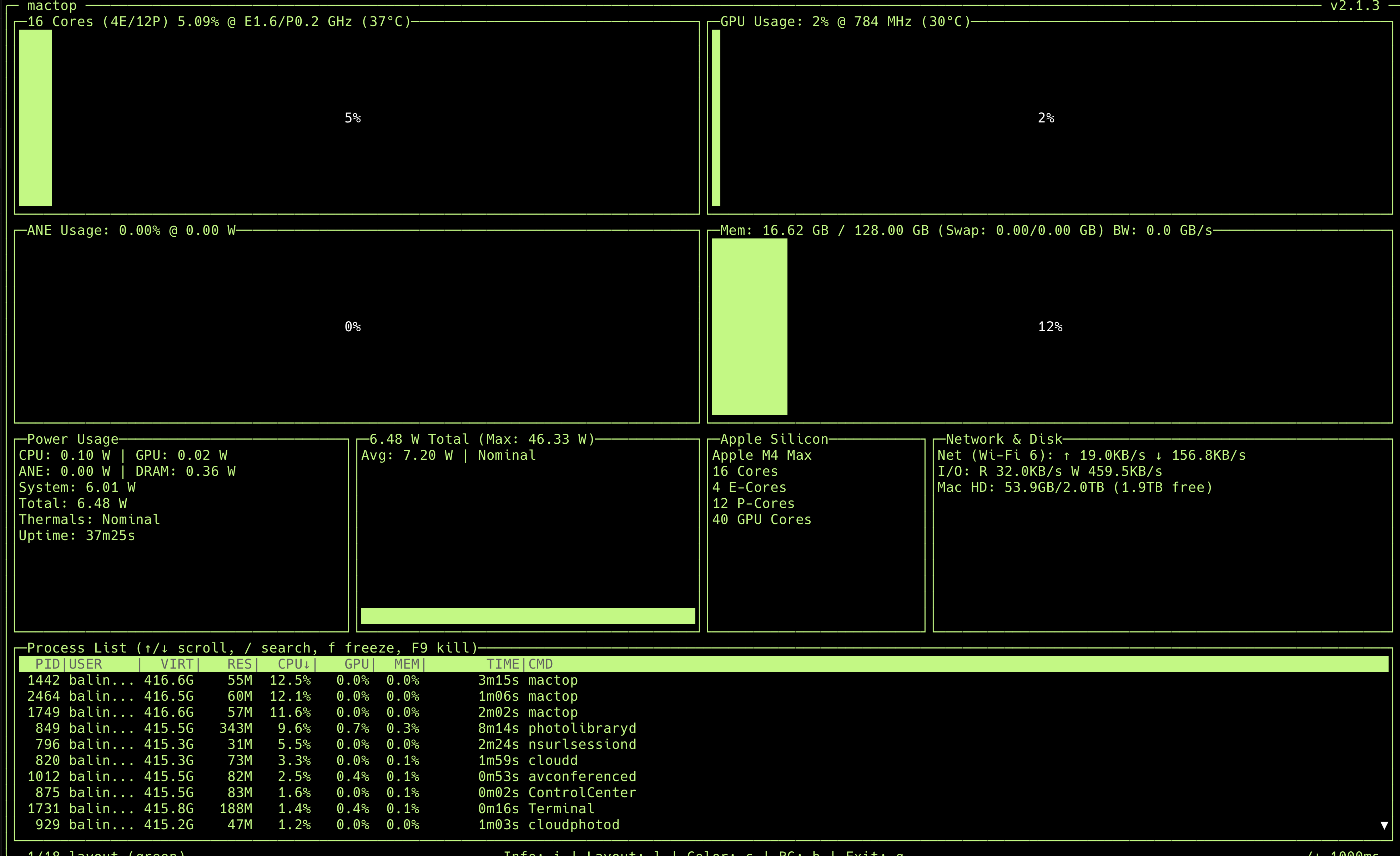
/img/mac-studio-mactop-firstboot.png to swap it in later.The numbers in that screenshot are the only hard numbers I will cite in this article. They are the ground truth for my machine at idle on a fresh setup:
- Apple Silicon: M4 Max
- CPU: 16 cores total - 4 efficiency cores + 12 performance cores; E-cluster at 1.6 GHz, P-cluster at 0.2 GHz; package at 37 C
- GPU: 40 cores at 784 MHz, 30 C
- Neural Engine (ANE): 16-core, drawing 0.00 W at idle
- Unified memory: 128.00 GB total, 16.62 GB in use (about 13%) at idle
- Power: 6.48 W total - CPU 0.10 W, GPU 0.02 W, ANE 0 W, DRAM 0.36 W, System 6.01 W. Max observed in the session was 46.33 W. Thermals: Nominal.
- Storage: 2.0 TB Mac HD, 1.9 TB free; 53.9 GB used by the OS and the initial setup
- Network: Wi-Fi 6, with a sample reading of 19.0 KB/s upload and 156.8 KB/s download during background sync
Two things stand out. First, 6.48 W at idle for a desktop with 128 GB of usable memory is remarkable - that is less than many laptops draw with the screen off. Second, the GPU is sitting at 784 MHz with 40 cores available; that pool is ready to do real work as soon as you put an LLM in front of it.
3. Why the Mac Studio M4 Max is amazing for local AI
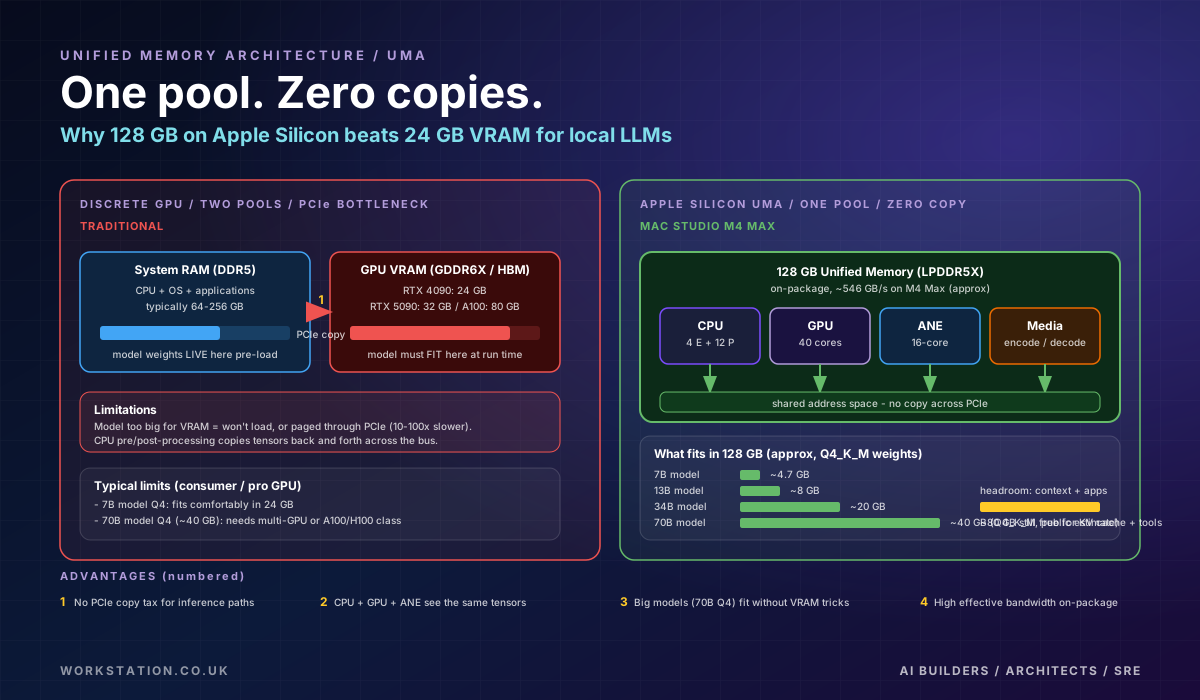
To understand why this hardware is such a good fit for local AI - and why "unified memory" is more than a marketing line - it helps to compare it directly with the canonical alternative: a discrete GPU card in a PC, communicating with system RAM over PCIe.
3.1 Unified memory in plain language
On a traditional PC AI rig, you have two memory pools. System RAM (usually 64-256 GB of DDR5) holds the OS, the application, and the model weights when you load them from disk. The GPU has its own VRAM - 24 GB on an RTX 4090, 32 GB on a 5090, 80 GB on an A100. Before the GPU can run a single matmul, the model has to be copied from system RAM into VRAM across the PCIe bus. If the model is bigger than VRAM, it either does not load at all, or it is paged through PCIe at brutal cost (often 10-100x slower than running fully in VRAM).
Apple Silicon collapses these two pools into one. The CPU, the GPU, the Neural Engine, and the media engines all see the same physical memory. There is no copy. There is no PCIe bottleneck. A model that is 40 GB on disk is 40 GB in unified memory, and the GPU can read it directly.
For local LLMs, this is the killer feature. A 70B-parameter model quantised to Q4_K_M is around 40 GB on disk (publicly cited figure for the Llama-class weights at that quant level - treat as approximate). On a 24 GB consumer GPU, that model simply does not fit. On 128 GB unified memory, it loads with around 80 GB still free for context, application code, and tools.
3.2 Power efficiency that is hard to believe
The mactop screenshot shows 6.48 W at idle and a max of 46.33 W observed during the session. To put that in perspective: a single RTX 4090 idles at 15-25 W with the rest of the system on top, and pulls up to 450 W under load. A Mac Studio is a desk-side AI box that you can leave running 24/7 without noticing it on the electricity bill. It is silent. The fans almost never spin up during inference workloads. This is what makes it viable as an always-on dev box in a way that a discrete GPU PC rarely is.
3.3 What the Apple Neural Engine actually does
The ANE is a 16-core fixed-function accelerator optimised for the kinds of tensor operations that CoreML produces. For most open-weights LLM workloads in 2026 (GGUF format running through llama.cpp or Ollama), the ANE is not in the hot path - the GPU is, via Metal Performance Shaders. The ANE shines for CoreML-converted models, on-device speech recognition, image segmentation, and similar fixed-shape workloads. It is also extremely power-efficient when it does run. Useful to know it is there; do not expect every LLM stack to use it.
4. Setting up the Mac Studio for AI work
After the standard macOS onboarding, here is the exact bring-up I follow for a fresh Mac Studio that I want to use as a local AI dev box.
4.1 Install Homebrew, Xcode CLT, and the basics
/bin/bash -c "$(curl -fsSL https://raw.githubusercontent.com/Homebrew/install/HEAD/install.sh)"

xcode-select --install

brew install git wget jq python@3.12 node pyenv
brew install --cask iterm2 visual-studio-code
Homebrew brings the Unix tooling, Xcode Command Line Tools provides the compilers and linkers, Python and Node give you a runtime for app code, and iTerm2 + VS Code are the editor + terminal pair I default to.
4.2 Install Ollama
Ollama is the easiest way to download, run, and serve open-weights LLMs on macOS. Under the hood it wraps llama.cpp with Metal acceleration and provides a simple HTTP API on port 11434.
brew install ollama

ollama serve &

ollama --version
You can also install via the official .dmg from ollama.com, which sets up a menu-bar app. Either path works. I prefer the brew install for headless boxes and the dmg for daily-driver Macs.
4.3 Install LM Studio (optional but worth it)
LM Studio is a desktop UI for browsing, downloading, and chatting with GGUF models. It also exposes an OpenAI-compatible API. I install it alongside Ollama because the model browser is excellent and the per-model performance tuning UI is friendly when you are deciding between Q4_K_M and Q5_K_M.
4.4 Install Continue.dev in VS Code
Continue.dev gives you ChatGPT-style assistance inside VS Code, but pointed at your local Ollama. After installing the extension, drop this in your ~/.continue/config.json:
{
  "models": [
    {
      "title": "Llama 3.1 8B (local)",
      "provider": "ollama",
      "model": "llama3.1:8b",
      "apiBase": "http://localhost:11434"
    },
    {
      "title": "Qwen 2.5 Coder 14B (local)",
      "provider": "ollama",
      "model": "qwen2.5-coder:14b",
      "apiBase": "http://localhost:11434"
    }
  ],
  "tabAutocompleteModel": {
    "title": "Codestral (local)",
    "provider": "ollama",
    "model": "codestral:latest",
    "apiBase": "http://localhost:11434"
  }
}
Now you have inline chat, edit, and autocompletion - all hitting models that live on the same desk as your editor. Zero data leaves the machine.
5. Running your first LLM
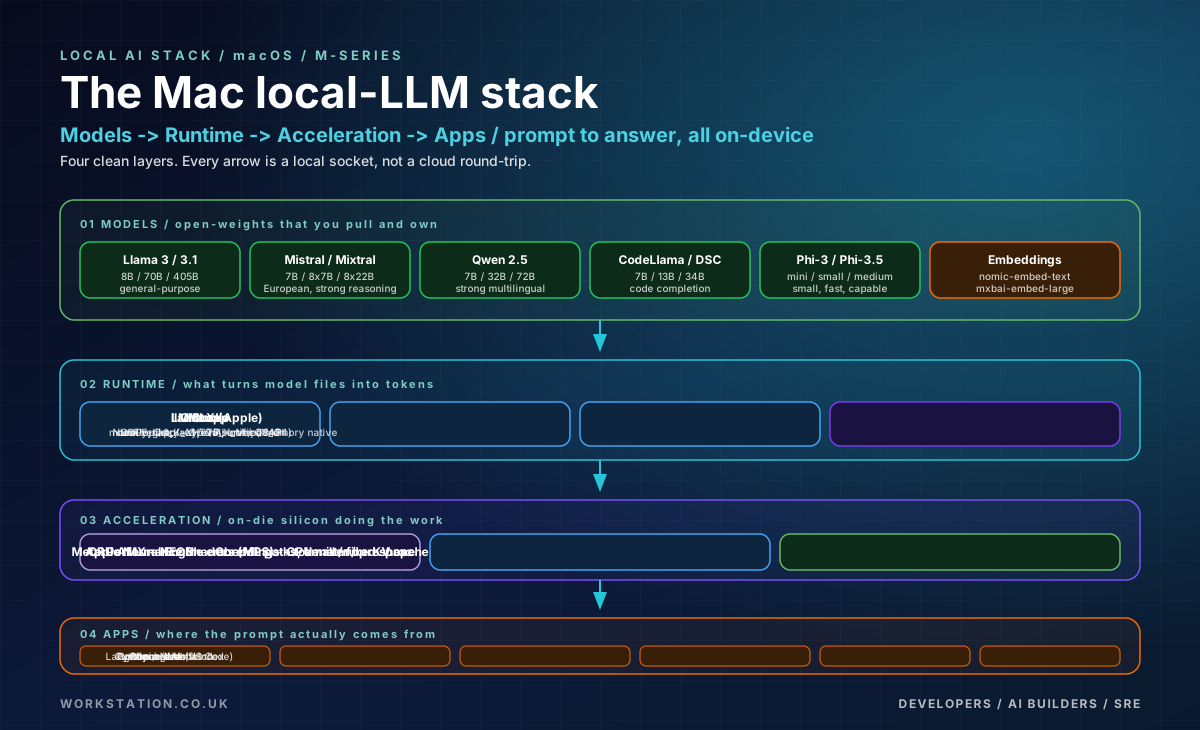
Time for the moment of truth. Pull a model and run it.
5.1 Pulling Llama 3.1 8B
ollama pull llama3.1:8b

ollama list

ollama run llama3.1:8b "Explain unified memory architecture to me in 3 sentences."
The pull downloads the Q4_K_M GGUF (Llama 3.1 8B at Q4_K_M is around 4.7 GB on disk - publicly cited figure, treat as approximate). On a Wi-Fi 6 connection like mine, the download takes a few minutes; on wired gigabit it is faster. Once it lands, the first ollama run includes a one-time model load into unified memory - you will notice a brief pause before the first token streams - and then subsequent runs are fast.
I deliberately will not quote tokens-per-second numbers for my own machine here, because I have not run a controlled benchmark suite with a paired methodology. What I will say is that on this class of hardware (M4 Max with 40 GPU cores) you should expect smooth, conversational streaming from an 8B model at Q4_K_M, with a noticeable initial load delay and steady output throughout the response. If you have read claims like "I get 60 tokens per second on my Mac" elsewhere, treat them as ballpark guidance; your actual numbers will vary with the prompt length, the context window, the quantisation level, the model architecture, and what else is running.
5.2 Choosing a quantisation - Q4_K_M, Q5_K_M, Q8_0
Quantisation reduces the precision of the model weights to shrink them on disk and in memory. The trade-off is quality. Here is the rough mental model I use when picking a quant for local inference:
| Quant | Approx size for 8B | Quality vs FP16 | When to use |
|---|---|---|---|
| Q4_K_M | ~4.7 GB | Very good, small drop | Default. Best speed/quality balance for chat and code. |
| Q5_K_M | ~5.7 GB | Closer to FP16 | When you need a touch more accuracy and have memory to spare. |
| Q8_0 | ~8.5 GB | Near-lossless | When you need maximum quality and minimum noise on small models. |
All sizes are approximate, publicly cited figures for Llama-class 8B weights. The relative ordering is what matters.
5.3 What fits in 32, 64, and 128 GB
| Unified memory | Realistic comfort zone (Q4_K_M) | Stretch (with care) |
|---|---|---|
| 32 GB | 7B / 8B / 13B | 20-22B at tight context |
| 64 GB | 13B / 20B / 34B | 40-50B at tight context |
| 128 GB | 34B / 70B / mixture-of-experts variants | 100-120B at tight context |
"Comfort zone" means the model loads with enough room for a generous context window, a KV cache, and other applications running. "Stretch" means it loads but you start juggling context length and other workloads. On my 128 GB box I can run a 70B at Q4_K_M and still have roughly 80 GB of headroom for VS Code, Chrome, and a couple of Python processes - which is, frankly, a luxurious feeling.
5.4 Calling Ollama from Node and Python
Ollama exposes an HTTP API at http://localhost:11434. A small Node fetch looks like this:
// node 20+
const res = await fetch("http://localhost:11434/api/generate", {
  method: "POST",
  headers: { "Content-Type": "application/json" },
  body: JSON.stringify({
    model: "llama3.1:8b",
    prompt: "Write a one-paragraph summary of unified memory architecture.",
    stream: false
  })
});

const data = await res.json();
console.log(data.response);
And from Python:
import requests

r = requests.post(
    "http://localhost:11434/api/generate",
    json={
        "model": "llama3.1:8b",
        "prompt": "Explain HNSW indexes briefly.",
        "stream": False,
    },
    timeout=120,
)
print(r.json()["response"])
This is everything you need to wire a local LLM into a CLI tool, a Slack bot, a shortcut, a microservice, or an internal automation. No keys, no rate limits, no quotas.
6. Best models to run on Mac Studio
Picking a model is part performance, part licence, part vibe. Here is what I actually run on the box, grouped by size tier.
6.1 Small (under 10B): fast everyday workhorses
- Llama 3.1 8B - excellent general-purpose chat and reasoning; permissive Meta licence with caveats.
- Mistral 7B / Ministral 8B - strong reasoning, Apache-licensed variants available.
- Qwen 2.5 7B - very strong multilingual and code performance.
- Phi-3.5 mini - tiny, surprisingly capable, ideal when you need throughput and low latency.
- Codestral / Qwen 2.5 Coder 7B - fast inline autocompletion for IDE work.
6.2 Mid (10B-40B): the sweet spot on 64-128 GB
- Llama 3.1 / 3.3 70B (Q4_K_M) - if you have 128 GB, this is the headline model; near-frontier quality, runs comfortably.
- Qwen 2.5 32B - excellent quality-to-size ratio; pairs well with RAG.
- DeepSeek-Coder 33B - strong at code generation tasks.
- Mixtral 8x7B - mixture-of-experts, only activates 2 experts at a time, fits comfortably.
6.3 Large (70B and up): only on 96-128 GB and only at Q4
At 128 GB the door is open to 70B-class models at Q4_K_M. They are slower than 8B models, but the quality jump is significant for tasks that benefit from broader world knowledge and longer reasoning. Expect the first-token latency to be longer and the streaming pace to drop, but the actual experience remains usable for many workflows.
7. Building a local RAG pipeline
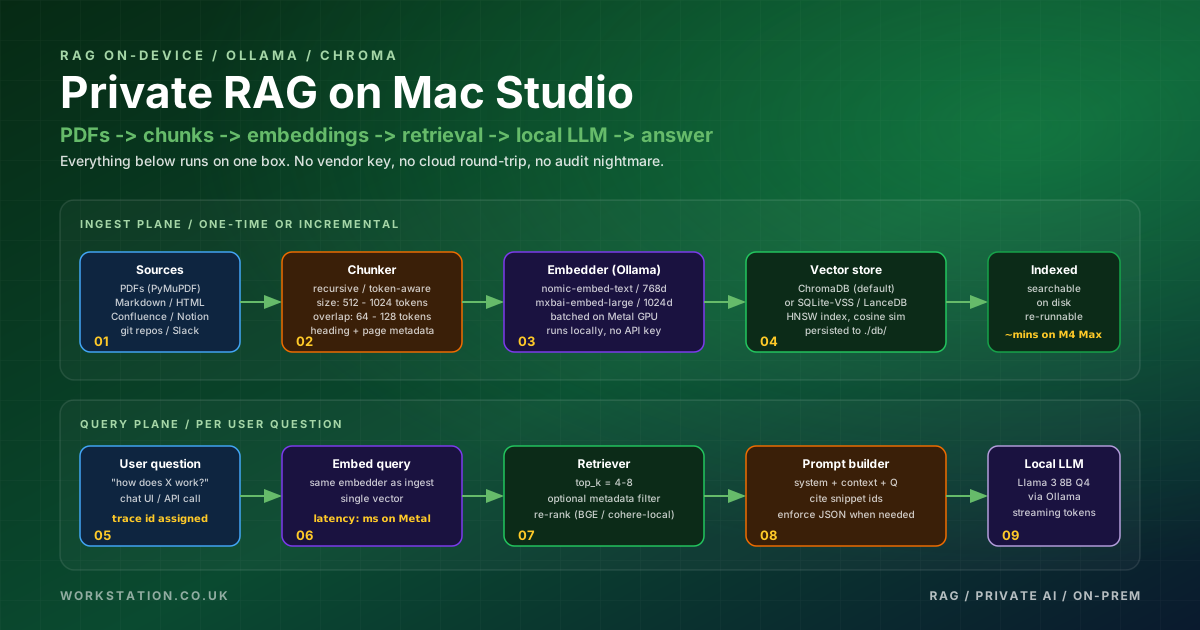
Once you have a local LLM, the most useful thing you can do with it is point it at your own documents. This is Retrieval-Augmented Generation, and it is the workload where the Mac Studio really shines as a private alternative to cloud APIs.
7.1 The stack
- Document parser - PyMuPDF for PDFs,
unstructuredfor mixed-format ingestion. - Chunker - LangChain's
RecursiveCharacterTextSplitteror a token-aware splitter. Typical chunk size 512-1024 tokens with 64-128 tokens of overlap. - Embeddings -
nomic-embed-textormxbai-embed-large, both available through Ollama. Both run on the local GPU. - Vector store - ChromaDB by default. SQLite-VSS for a zero-server option. LanceDB if you want a single-file embedded option that scales.
- Generator - Llama 3.1 8B for fast turnaround, or 70B if you want the highest-quality answers.
7.2 Minimal Python example - end to end
pip install chromadb requests pypdf

import os, glob, requests, chromadb
from chromadb.utils import embedding_functions
from pypdf import PdfReader

OLLAMA = "http://localhost:11434"
EMBED_MODEL = "nomic-embed-text"
GEN_MODEL   = "llama3.1:8b"

def embed(text: str) -> list[float]:
    r = requests.post(f"{OLLAMA}/api/embeddings", json={
        "model": EMBED_MODEL, "prompt": text,
    }, timeout=60)
    return r.json()["embedding"]

def generate(prompt: str) -> str:
    r = requests.post(f"{OLLAMA}/api/generate", json={
        "model": GEN_MODEL, "prompt": prompt, "stream": False,
    }, timeout=300)
    return r.json()["response"]

def chunk(text: str, size: int = 1000, overlap: int = 150):
    out, i = [], 0
    while i < len(text):
        out.append(text[i:i+size])
        i += size - overlap
    return out

client = chromadb.PersistentClient(path="./rag-db")
col = client.get_or_create_collection("docs")

for path in glob.glob("./docs/**/*.pdf", recursive=True):
    reader = PdfReader(path)
    full = "\n".join(p.extract_text() or "" for p in reader.pages)
    for j, c in enumerate(chunk(full)):
        col.add(
            ids=[f"{os.path.basename(path)}::{j}"],
            documents=[c],
            embeddings=[embed(c)],
            metadatas=[{"source": path, "chunk": j}],
        )

def ask(q: str, k: int = 5) -> str:
    qe = embed(q)
    res = col.query(query_embeddings=[qe], n_results=k)
    ctx = "\n\n".join(res["documents"][0])
    prompt = (
        "Answer the question using only the context below. "
        "If the answer is not in the context, say you do not know.\n\n"
        f"Context:\n{ctx}\n\nQuestion: {q}\nAnswer:"
    )
    return generate(prompt)

print(ask("What is unified memory and why does it matter for LLMs?"))
That is a complete local RAG pipeline in under 60 lines of Python. The whole thing runs on the Mac Studio. No external API keys, no per-token billing, no data leaving the machine. The first ingestion of a large PDF set will take a few minutes; subsequent queries are quick.
7.3 Tuning notes
- Chunk size - start with 1000 characters and 150 of overlap; bump up if your sources have long structured sections (legal, technical specs) and the retriever is fragmenting answers.
- Top-k - 4-8 is the practical range. Going much higher inflates the prompt and slows generation without obvious gains.
- Re-ranking - for the highest quality, retrieve top-20 and re-rank with a cross-encoder (e.g.
bge-reranker). On Mac Studio this is cheap. - Metadata filtering - tag chunks with their source path, date, and section; filter at query time before the vector search. This is the single biggest precision win.
- Streaming - switch
streamtotruein the Ollama call and stream tokens to the client for a snappy UX.
8. The day-to-day developer loop
After a couple of weeks on the Mac Studio my daily loop looks like this:
- Open VS Code, Continue.dev wakes up against Ollama.
- Open a chat in Open WebUI (or LM Studio) for longer conversational Q&A against my notes.
- For code work: tab-autocomplete on a Codestral or Qwen Coder model, longer chats on Llama 3.1 8B, deep reasoning sessions on a 70B when the task warrants it.
- For internal RAG, a Python script that points at the project's docs/ folder and a Chroma database.
- For agent prototyping, LangGraph or a small custom loop that calls the Ollama endpoint - same pattern, different glue.
The thing that really changes when your LLM is local is the way you use it. There is no incremental cost to a query, so you ask the model more questions. There is no privacy worry, so you paste in production logs, internal docs, customer emails. You write small CLI scripts that go through 200 documents to extract a structured summary, and you do not think twice about the per-token bill, because there is no bill.
9. Benchmarks and honest comparison vs cloud
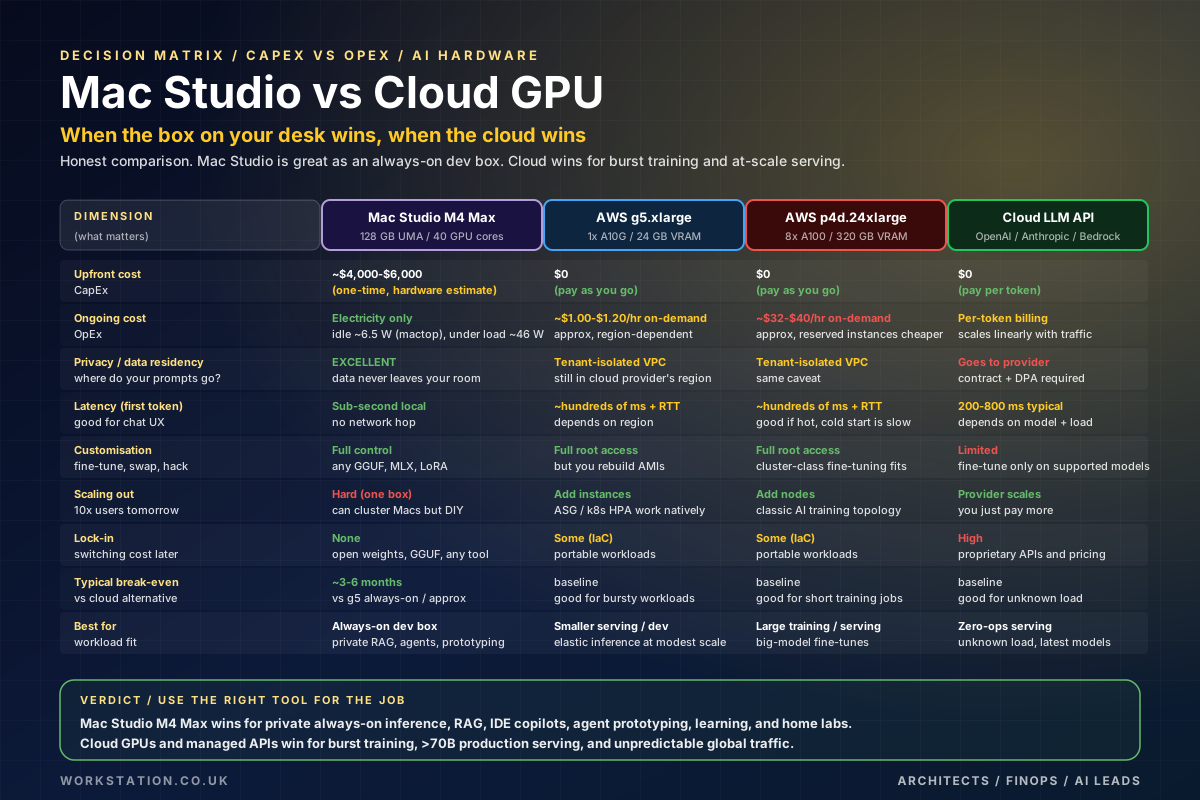
Let me be very direct: I am not going to publish tokens-per-second numbers I have not produced with a tightly controlled benchmark methodology. The internet is awash with such numbers, often comparing different quantisation levels and context lengths and prompt formats, and they confuse more than they clarify. What I will do instead is publish a decision matrix that captures what kind of workload Mac Studio actually wins at, where it does not, and where the right answer is "use both".
9.1 Break-even maths
A Mac Studio M4 Max with 128 GB unified memory and a 2 TB SSD lands in roughly the same price band as a few months of an always-on cloud GPU instance. Treat all specific dollar figures as approximate and as a function of region and discounting:
- One Mac Studio M4 Max, well configured: roughly $4,000-$6,000 one-time (approximate; configurations vary).
- One AWS
g5.xlarge(single A10G, 24 GB VRAM) running 24x7 on-demand: in the order of $700-$900 per month (region-dependent). - One AWS
p4d.24xlarge(8x A100): order of $20,000-$30,000 per month on-demand if you somehow left it on (you would not, but it makes the contrast obvious).
The arithmetic says that for an always-on dev box, the Mac Studio pays for itself in a few months versus a comparable always-on cloud instance, and continues to pay for itself in electricity terms for years. For burst training jobs the maths flips: rent for an hour, do the run, hand it back. Use the right tool for the job.
9.2 When the cloud is the right answer
- You need to train or fine-tune a model bigger than will fit in 128 GB.
- You need to serve at scale to a global user base with strict SLOs and elastic capacity.
- You are running an experiment that benefits from 8x A100 or H100 parallelism.
- Your org's compliance posture says inference must run in a specific cloud region with specific audit trails.
9.3 When the Mac Studio is the right answer
- You want an always-on private inference box for your team.
- You are building RAG, agents, or IDE copilots where data residency and privacy matter.
- You want a quiet, low-power dev box that does not require a server room.
- You are prototyping fast and the per-token billing of a cloud API is in your way.
- You want to learn the stack - own a model, own a runtime, own a vector store, own the loop.
10. Challenges and limitations
I would not be doing this article any favours if I did not name the rough edges. Apple Silicon is excellent for local AI, but there are real caveats.
10.1 Training is still a weaker story than inference
The Apple Silicon AI story is much stronger for inference than for training. PyTorch's MPS backend has matured significantly, and Apple's own MLX framework is genuinely good, but the breadth of CUDA-only training tooling is still wider. If your day job is novel model architectures or large-scale fine-tuning, you will hit holes that you simply do not hit on Linux + NVIDIA.
10.2 Ecosystem assumes CUDA in many places
Many AI repos still default to CUDA assumptions. Most maintained projects now have Metal / MPS paths, but expect occasional friction: a library that requires building from source, a kernel that has no Metal equivalent, a benchmark suite that only runs on NVIDIA. Plan time for this.
10.3 Scaling out is DIY
One Mac Studio is a single box. Tools like EXO and others let you cluster Macs to run very large models across multiple devices, but this is not the polished story you get with a Kubernetes cluster of g5s. If your workload needs horizontal elasticity, the cloud is still better.
10.4 Repairability and upgrades
You cannot add RAM later. You cannot swap the SSD later (practically speaking). Buy what you need, then plus one - especially on memory. The 128 GB tier is the one I would recommend for serious AI work; 64 GB is the floor.
10.5 Thermals under sustained load
The Mac Studio runs cool and quiet at idle (the screenshot above shows 37 C and 30 C with the fans inaudible). Under sustained heavy LLM load, the fans do spin up - not loudly, but audibly - and the chip warms. This is well within nominal thermal envelopes; just be aware that "silent" is an idle and light-load characterisation, not an absolute.
11. The future of local AI on Apple Silicon
Three trends are converging that make the next 12-24 months exciting for local AI on Apple Silicon.
First, open-weights models keep getting smaller without losing capability. Phi-3.5, Qwen 2.5 small, and the Llama 3.x family at 8B punch above their weight class. A 2026 8B model is roughly comparable in quality to a 2023 70B in many tasks. That means more workloads fit comfortably in 32-64 GB of unified memory, and a 128 GB Mac Studio becomes a multi-model serving box.
Second, Apple's own MLX framework keeps improving. MLX provides a NumPy-like API, lazy evaluation, unified memory awareness by default, and dynamic computation graphs. The MLX community has been porting models, tokenizers, and training loops at a fast clip. If you are starting a fresh ML project on a Mac today, MLX is the natural choice; if you are using PyTorch, the MPS backend is more usable each release.
Third, quantisation and KV-cache compression keep getting better. Techniques like Q4_K_M, IQ-family quants, and GGUF improvements mean that the same model fits in less memory than it did six months ago, with less quality loss. Local AI is on a curve where each generation of model + quant pairing extends the practical reach of consumer-priced hardware.
Add to all this the rumour mill around future M-series chips (M5, future Ultras, Studio refreshes), and the trajectory is clear: the desk-side AI box is here, and it keeps getting better.
12. Hardening the Mac Studio as a team AI box
If you want to share your Mac Studio with a small team - say, expose Ollama, an Open WebUI instance, and a RAG endpoint to a handful of colleagues - here is the rough hardening I do:
- FileVault on and a strong login password. Keep it on a UPS.
- Tailscale on the box so it is reachable from your team's devices without exposing it to the public internet.
- Bind Ollama to localhost and front it with a thin auth proxy (Caddy, Traefik, or a small Node/Python server) that handles authentication and rate limiting before forwarding to
11434. - Run Open WebUI in Docker Desktop with a persistent volume; point it at the local Ollama endpoint.
- Backups for the RAG database to an encrypted external SSD or a Time Machine target.
- Auto-update macOS and Homebrew packages on a schedule; pin Ollama and model versions intentionally rather than auto-pulling latest.
Done well, you have a private, audit-friendly AI endpoint that your team uses every day and that never sends a token off the building's network.
13. Conclusion: a quiet revolution on the desk
Unboxing a Mac Studio M4 Max in 2026 feels less like buying a desktop and more like buying a small AI appliance that happens to also be a Mac. 128 GB of unified memory, 40 GPU cores, 16 CPU cores, a Neural Engine, hardware media encoders, a 2 TB SSD, and an idle power draw measured in single watts - all in a box you can pick up with one hand.
The setup is fast, the first LLM is running within an hour, and within an afternoon you have a private RAG pipeline answering questions over your own documents. The whole thing happens on your desk, with no cloud bill ticking up in the background. That changes how you build with AI in a way that is hard to convey until you try it.
If you are evaluating whether a Mac Studio belongs in your team's hardware mix, I hope this article gave you a grounded view: what is amazing, what is rough, where the cloud still wins, and where the box on your desk is the better answer. The companion short blog distills the same workflow into a 5-minute read for sharing.
If this was useful - watch the unboxing on YouTube (https://youtube.com/shorts/HUlUoHNsyNM), subscribe to the channel for follow-up tutorials (MLX fine-tuning, multi-Mac inference, agent stacks), and check back here for the next article in the series. Local AI on Apple Silicon is just getting started, and I will keep writing as the stack matures.
SEO snapshot for this article
- SEO title: Unboxing Mac Studio M4: Run Your First LLM Locally
- Meta description: Unbox a Mac Studio M4 Max with 128 GB unified memory, install Ollama, run Llama 3 locally, and build a private RAG pipeline. Real readings, honest comparisons.
- Primary keywords: Mac Studio AI, Mac Studio LLM, Running LLMs on Mac Studio, Ollama Mac Studio, Apple Silicon AI, Local AI setup, Mac Studio RAG, Local LLM tutorial, Run Llama locally, Mac Studio M4 review.
- Twitter / X (under 280 chars): Unboxed a Mac Studio M4 Max. 128 GB unified memory. Idles at 6.48 W. Pulled Llama 3.1 8B via Ollama, built a local RAG pipeline in an afternoon, no cloud bill. Full 4000-word walkthrough + 6 diagrams + the YouTube Short. #AppleSilicon #LocalLLM
- LinkedIn post: The new Mac Studio M4 Max landed on my desk and I treated it like an AI appliance: real readings from mactop (6.48 W idle, 128 GB UMA, 40 GPU cores), Ollama install, Llama 3.1 8B running locally, a full RAG pipeline against my own docs - all in one afternoon. I wrote up the entire workflow, with six original diagrams, an honest cloud-versus-local decision matrix, and a section on where the cloud still wins. If you are evaluating local AI for your team, this is a grounded place to start.