 Balinder Walia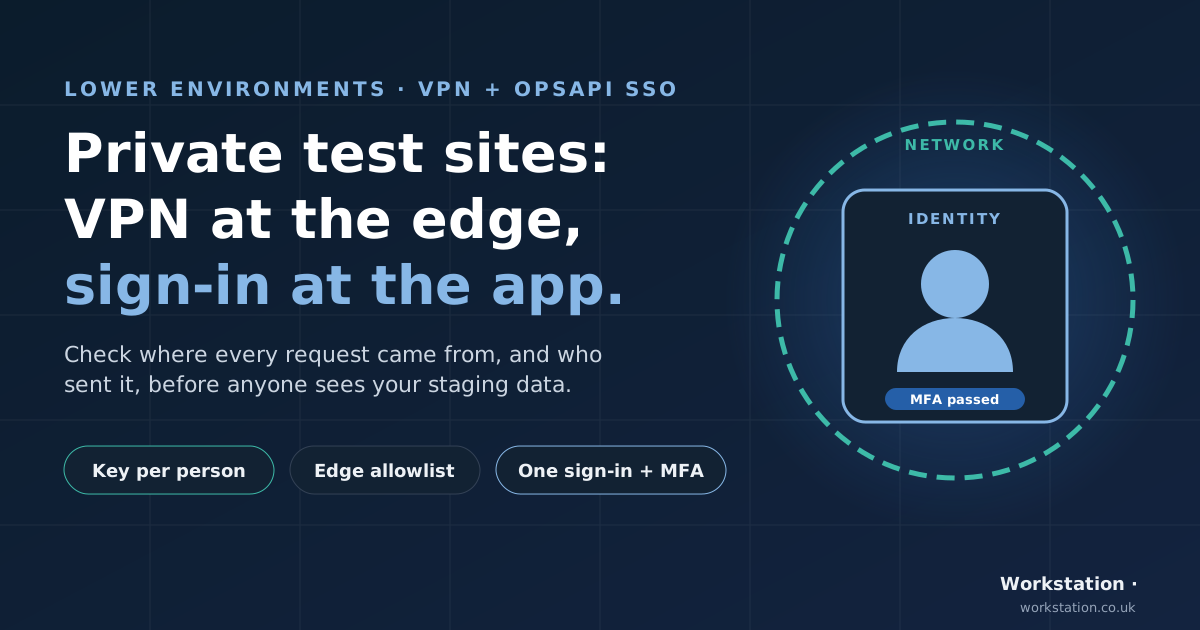
Your test and staging sites probably hold real-looking data and features you haven't announced yet. Most teams believe those sites are private. This post explains, in plain terms, how we keep pre-production sites private with two separate layers: a VPN checked at the edge, which proves where a request came from, and OpsAPI sign-in, which proves who sent it. Engineers who want the request path, the failover detail and the test commands should read the in-depth technical article.
Interactive version: switch edges, turn the VPN off and step through the sign-in to see what each request gets.

The staging site everyone assumes is private
Ask a team how their staging site is protected and you'll often hear "it's not linked from anywhere" or "it only allows the office IP". Both answers describe something real, but neither describes a person. A hidden address stays hidden only until it turns up in a browser history, a screenshot, a support ticket or a certificate transparency log. An office IP allowlist lets in anyone whose traffic leaves from that office, whether they're staff, a guest on the Wi-Fi or a device nobody has checked.
That matters more than it used to. Lower environments (int, test, staging) tend to hold copies of production data, half-finished features and admin screens with fewer safeguards than the live site. And clients and auditors increasingly ask a direct question: how are your lower environments separated from the public internet, and who can get in?
Two questions every request must answer
We find it useful to split the problem into two questions, because they need different tools:
- Where did this request come from? Was it sent from a device we issued access to, through our VPN?
- Who sent it? Which named person is this, did they pass multi-factor authentication (MFA), and what are they allowed to do?
An IP allowlist can only answer the first question. A login can only answer the second. Used together, they cover each other's blind spots.
Layer 1: the network, in plain words

Every member of staff has their own VPN key on their own device. When they open a test site, five things happen:
- DNS sends their browser to whichever of our two edge servers is healthy.
- Their device recognises the edge's address and sends the request into the encrypted VPN tunnel.
- The VPN hub checks the device's key. No valid key, no tunnel.
- The hub sends the request on to the edge from a single, known office address.
- The edge checks that address against an access rule. If it matches, the site loads. Everyone else gets a "403 Forbidden".
The useful property is that the test site never has to be open to the internet. A visitor without a VPN key is turned away at the edge, before the request reaches the application.
What happens when a server fails over
We run two edge servers so that a site stays up if one of them fails. DNS failover watches both and points the site at the healthy one. That's good for uptime, but it taught us a lesson worth sharing.
When a site failed over from edge A to edge B, colleagues working away from the office suddenly got "403 Forbidden", even though their VPN was connected. Their VPN settings only sent traffic for edge A through the tunnel. Traffic for edge B quietly went out over their home connection, arrived from the wrong address and was refused. People in the office didn't notice anything, because their traffic already left from the office address.
The fix was simple once we understood it: edge B had to be added in two places, on each device (so its traffic enters the tunnel) and on the VPN hub (so it leaves from the office address).

The general lesson: every server a site can fail over to must be covered by your VPN set-up, and you should test failover from outside the office, not only on the office network.
Layer 2: one OpsAPI sign-in for all your apps
The network layer gets a request to the door. It can't tell you who is standing there: everyone behind the office address looks the same to the edge. That's where OpsAPI comes in.

OpsAPI gives every app you run one shared sign-in and one user directory:
- One sign-in for every app. People sign in with email and password, with an emailed code when the workspace requires MFA, or with Google or Apple. One directory of users, with roles per workspace.
- Sign in once. If someone has already signed in to one app, opening a second app takes them straight in with no second prompt. Signing out ends that session, so the next visit asks again.
- MFA by default. Workspaces ask for a sign-in code unless the workspace owner turns it off, and when someone belongs to several workspaces, the strictest one decides.
- Security built in. OpsAPI only hands a sign-in back to apps it has been told to trust. The same lockout, rate limits and audit trail apply however someone signs in.
- Self-hosted. It runs on infrastructure you control, so there's no per-user identity bill and no separate login system to build for each app.
For a test site, that means the edge proves the request came through our VPN, and OpsAPI proves which named person is using it and what they may do.
What this gives you in compliance conversations
We don't claim any certification for this set-up, and an auditor decides what counts as evidence for their framework. What the two layers do is help you evidence the kinds of controls clients and auditors ask about:
| What you're asked | What helps you evidence it |
|---|---|
| Are lower environments separated from the public internet? | A request from outside the VPN gets 403 at every edge, and you can show it. |
| Is access named and per person? | A VPN key per device and person, plus a named OpsAPI account. |
| Is MFA enforced? | OpsAPI asks for a sign-in code when the workspace requires it. |
| Can you remove a leaver quickly? | Remove their VPN key and deactivate their OpsAPI account: two actions, both recorded. |
| Is traffic encrypted in transit? | WireGuard on the tunnel and HTTPS to the site. |
| Does access hold up during an outage? | Both edges carry the same rule and both are routed through the VPN, so a failover doesn't open or break anything. |
These map to the kind of controls you'll find in ISO 27001 Annex A (for example, separation of environments and access control) and in SOC 2 (logical access). Use them as a starting point for your evidence, not as a claim that you're compliant.
Honest limits
- An allowlist is a network check, not a user check. That's why the sign-in layer exists. Don't rely on the office address alone.
- Office addresses can change. If your broadband provider changes the address, the allowlist has to follow it, or everyone is locked out.
- One VPN hub is one point of failure. Plan a second path for when the office connection goes down.
- Edge logs see the office address for everyone. Per-person records come from the sign-in layer, not from the edge.
- Offboarding is two actions. Remove the VPN key and deactivate the OpsAPI account.
What about SAML and OIDC?
Many enterprise tools expect to plug into a SAML identity provider or an OpenID Connect (OIDC) provider. OpsAPI is neither. It has no client registrations and no standard /authorize or /token endpoints, so an off-the-shelf SAML or OIDC client can't use it directly.
Apps integrate with OpsAPI today through a simple redirect: the app sends the browser to the OpsAPI sign-in page, gets a token back, and asks OpsAPI who the person is. It takes a small amount of code per app, which the technical article shows. If you need SAML or OIDC for a particular tool, OpsAPI doesn't offer it today, and you should plan for that.
Where to go next
- For the request path, the failover detail, the OpsAPI sign-in contract and a test plan with commands, read the technical article: An IP Allowlist Isn't a Login.
- To see what OpsAPI single sign-on covers and how to set it up, see the OpsAPI README.
- Questions about your own lower environments? Talk to us.