This guide is for the engineers who will specify, rack and run RTX PRO 6000 Blackwell Server Edition systems: infrastructure leads, MLOps and platform teams, and the people who sign off the power budget. It covers what the card is, how to size GPU memory for real models, MIG, PCIe topology and networking, UK power and cooling, the software stack, how to validate a new server, and a rollout plan. Specifications come from NVIDIA's product page and datasheet; the rack-scale design comes from AMAX's published RackScale 32 material. Everything else is our own engineering experience, and we say so where a figure is an estimate.

1. The card in one table
| Item | RTX PRO 6000 Blackwell Server Edition |
|---|---|
| Architecture | NVIDIA Blackwell |
| CUDA cores | 24,064 |
| Tensor Cores | 752, fifth generation, with FP4, FP6, FP8, FP16, BF16 and TF32 and the second-generation Transformer Engine |
| RT Cores | 188, fourth generation; 355 TFLOPS peak RT performance |
| Peak Tensor throughput (NVIDIA) | FP4 4 PFLOPS · FP8 2 PFLOPS · FP16/BF16 1 PFLOPS · TF32 234 TFLOPS |
| FP32 | 120 TFLOPS |
| Memory | 96 GB GDDR7 with ECC, 512-bit, 1,597 GB/s |
| Partitioning | MIG, up to 4 isolated instances |
| Media | 4 × NVENC (9th gen, adds 4:2:2 H.264 and HEVC encode), 4 × NVDEC (6th gen) |
| Display | 4 × DisplayPort 2.1 |
| Host interface | PCIe Gen 5 x16; no NVLink |
| Power | Up to 600 W, configurable |
| Form factor | Air: dual slot, full height, full length, passive. Liquid: single slot |
| Security | Secure boot with hardware root of trust |
Two lines in that table drive most design decisions: 96 GB at 1.6 TB/s, which sets model size, concurrency and decode speed, and 600 W over PCIe without NVLink, which sets power, cooling and how you split work across GPUs.
A note on the Tensor figures. NVIDIA publishes peak numbers; AMAX's comparison lists 3.7 PFLOPS of FP4 and 117 TFLOPS of FP32, which reflects a different clock or power assumption. Treat all of them as ceilings. For LLM inference at small batch sizes, memory bandwidth, not Tensor throughput, usually limits tokens per second.
2. Where it sits in NVIDIA's range
- Against the L40S: 96 GB GDDR7 instead of 48 GB GDDR6, 1,597 GB/s instead of 864 GB/s, PCIe Gen 5 instead of Gen 4, FP4 and MIG added, and 600 W instead of 350 W. In our experience a model that needed two L40S cards for memory usually fits on one RTX PRO 6000.
- Against HGX B200/B300: HGX boards join eight GPUs with NVLink and carry HBM3E. They're the right tool for training and for very large models that need tensor parallelism across eight GPUs. The RTX PRO 6000 is the right tool for inference, fine-tuning of small and mid-size models, graphics and simulation, in ordinary air-cooled racks.
- Against the Workstation Editions: the Workstation Edition has its own fans for a desktop tower, and the Max-Q Workstation Edition runs at 300 W. The Server Edition is passive, so it only works in a server that pushes air through it, or in its liquid-cooled form.
3. Sizing GPU memory for LLMs
Memory, not compute, is usually what you run out of first. Size it in three parts: weights, KV cache and overhead.
3.1 Weights
Weights take parameters × bytes per parameter:
| Model size | BF16 (2 bytes) | FP8 (1 byte) | FP4 (about 0.5 bytes plus scales) |
|---|---|---|---|
| 8B | 16 GB | 8 GB | about 5 GB |
| 32B | 64 GB | 32 GB | about 18 GB |
| 70B | 140 GB | 70 GB | about 38 GB |
| 120B | 240 GB | 120 GB | about 65 GB |
FP4 figures include an allowance for the block scale factors that 4-bit formats store; the exact overhead depends on the format and the tool that quantised the model. Always check accuracy on your own evaluation set before moving a production model to FP8 or FP4.
3.2 KV cache
Every token in every active conversation keeps keys and values for every layer. Per token:
KV bytes per token = 2 × layers × kv_heads × head_dim × bytes per elementFor a Llama 3.3 70B-class model (80 layers, 8 KV heads with grouped-query attention, head dimension 128) with a BF16 cache:
2 × 80 × 8 × 128 × 2 bytes = 327,680 bytes ≈ 320 KiB per token
× 32,768 tokens of context   ≈ 10 GiB per full-length conversation
FP8 KV cache                 ≈ 5 GiB per full-length conversation
3.3 Worked examples
Assume the inference server may use 90% of each GPU (vLLM's default --gpu-memory-utilization) and a few GB per GPU go on activations and CUDA graphs. These are estimates to plan with, not guarantees:
| Set-up | Usable memory | Weights | Left for KV cache | Full 32k conversations at once |
|---|---|---|---|---|
| 70B FP8 on 1 GPU | ≈ 86 GB | ≈ 70 GB | ≈ 12 GB | about 1 (BF16 KV) or 2 (FP8 KV) |
| 70B FP4 on 1 GPU | ≈ 86 GB | ≈ 38 GB | ≈ 44 GB | about 4 (BF16 KV) or 8 (FP8 KV) |
| 70B FP8 on 2 GPUs, tensor parallel 2 | ≈ 173 GB | ≈ 70 GB | ≈ 95 GB | about 9 (BF16 KV) or 18 (FP8 KV) |
| 70B FP8, four replicas on a 4U eight-GPU server | ≈ 691 GB | ≈ 280 GB | ≈ 380 GB | about 35 (BF16 KV) or 70 (FP8 KV) |
Most conversations are much shorter than 32k tokens, and paged KV caches only hold what's used, so real concurrency is usually several times higher. The method still matters: size from your real context lengths and peak concurrent users, not from the model's parameter count alone.
3.4 Throughput, roughly
At small batch sizes, each generated token reads all the weights once. A rough ceiling for a single stream is memory bandwidth ÷ weight bytes: 1,597 GB/s ÷ 70 GB ≈ 23 tokens/s for a 70B FP8 model on one GPU, and roughly double that in FP4. Batching many users together raises total throughput far above the single-stream figure, because the weights are read once per step for the whole batch. Benchmark your own prompts with your inference server before committing to a GPU count.
4. MIG: one card, up to four GPUs
Multi-Instance GPU splits a card into isolated instances, each with its own memory, cache and compute and a guaranteed share of the card. On the RTX PRO 6000 that means up to four instances of roughly 24 GB each. Typical uses:
- Several small models (embeddings, rerankers, 7B–8B chat models) on one card, each in its own instance.
- Development and test environments for several teams without one team starving another.
- Kubernetes clusters where each pod should get a fixed slice of GPU.
The available profiles depend on the driver version, so list them on your server rather than copying names from elsewhere:
# Enable MIG mode on GPU 0 (needs the GPU to be idle; may need a GPU reset)
sudo nvidia-smi -i 0 -mig 1

# List the GPU instance profiles this card and driver support
nvidia-smi mig -i 0 -lgip

# Create instances from a profile ID shown above, with their compute instances (-C)
sudo nvidia-smi mig -i 0 -cgi <profile-id>,<profile-id> -C

# Check what you created
nvidia-smi -L
On Kubernetes, the NVIDIA GPU Operator's MIG manager applies a MIG layout from a node label, and the device plugin then advertises each instance as a schedulable resource. Choose the single strategy when every GPU on a node uses the same layout, and mixed when they differ.
MIG isn't free: a model that needs the whole card's memory can't run in a quarter of it, and you can't use MIG and full-card jobs on the same GPU at the same time. Plan which GPUs are partitioned and which aren't.
5. Servers and PCIe topology
5.1 The three common builds
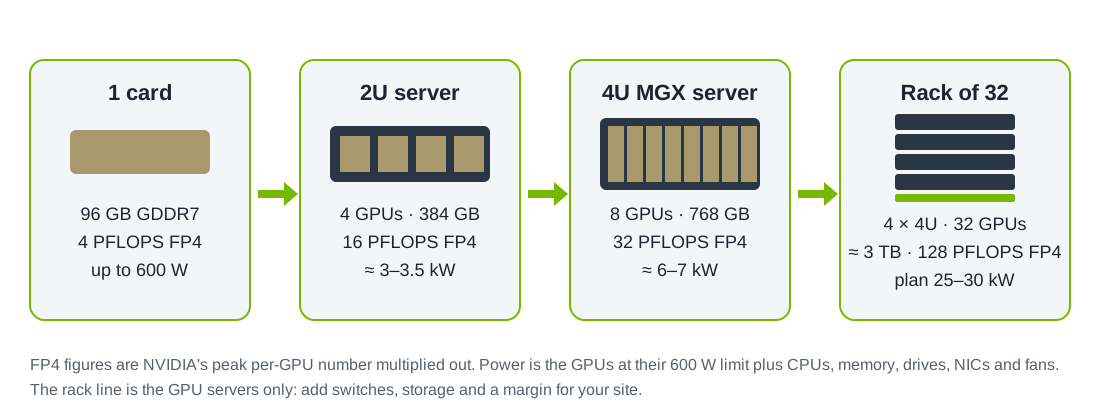
- 2U, four GPUs. Usually one or two CPUs with the GPUs on direct CPU lanes or a single PCIe switch. Good for one model with tensor parallelism of 2 or 4, or several replicas.
- 4U, eight GPUs on NVIDIA MGX. MGX is NVIDIA's modular server reference design. AMAX's AceleMax AXG-428AG is one example: two AMD EPYC 9005 processors, eight dual-slot GPUs, up to five PCIe Gen 5 x16 slots for network cards and up to eight E1.S NVMe drives.
- A 32-GPU rack. Four eight-GPU servers plus the switches between them. AMAX publishes this as the RackScale 32: 32 RTX PRO 6000 Server Edition GPUs, dual-socket EPYC 9005 per server, up to about 3 TB of GDDR7 (32 × 96 GB) and 128 PFLOPS of FP4 in total, with Spectrum-X Ethernet or Quantum InfiniBand. It's designed to be repeated rack by rack.
5.2 Why topology matters without NVLink
Without NVLink, GPUs exchange data over PCIe. Two GPUs under the same PCIe switch talk to each other directly and quickly; two GPUs on different CPU sockets have to cross the link between the sockets, which is slower. Check the layout on any server:
nvidia-smi topo -mIn the matrix, PIX or PXB between two GPUs means they share a PCIe switch path; NODE means they're on the same CPU socket but different root ports; SYS means the traffic crosses between sockets. Practical rules:
- Put the GPUs of one tensor-parallel group on the same switch or at least the same socket. Tensor parallelism of 2 or 4 is usually the sweet spot on PCIe.
- For more GPUs per model, prefer pipeline parallelism across groups, or run several replicas behind a load balancer. Replicas scale almost linearly; wide tensor parallelism over PCIe doesn't.
- Put each network card under the same PCIe switch as the GPUs it serves, so GPUDirect RDMA can move data between GPU memory and the network without touching the CPU. Some newer RTX PRO server designs build this in by using NVIDIA ConnectX-8 SuperNICs, which include a PCIe switch.
6. Networking between servers
A single server needs only ordinary data-centre networking. Once a workload spans servers, as in distributed fine-tuning, very large models split across nodes, or a shared inference fleet with fast model loading, the network matters.
- Bandwidth: plan one 400 Gb/s port for every one or two GPUs on servers that run multi-node jobs. An eight-GPU MGX server with four or five 400 Gb/s cards is a common build.
- Fabric: NVIDIA Spectrum-X Ethernet (Spectrum-4 switches with ConnectX or BlueField network cards, using RoCE) or Quantum InfiniBand. Spectrum-X suits teams that already run Ethernet; InfiniBand suits HPC teams used to it.
- Separate networks: keep the GPU fabric apart from the storage network and from management (BMC and out-of-band). Mixing them is the usual cause of unpredictable job times.
- Storage: local E1.S or U.2 NVMe for model weights and scratch, and a parallel or NVMe-over-fabrics file system if many servers load the same large models.
For inference fleets where each request runs on one server, 100 or 200 Gb/s per server is usually enough.
7. Power and cooling in UK rooms
7.1 Power budget
| System | GPU power at 600 W | Whole system, estimated |
|---|---|---|
| 2U, 4 GPUs | 2.4 kW | about 3 to 3.5 kW |
| 4U, 8 GPUs | 4.8 kW | about 6 to 7 kW |
| Rack, 32 GPUs | 19.2 kW | about 25 to 30 kW, before network switches and storage |
"Whole system" adds CPUs, memory, drives, network cards, fans and power-supply losses. Use the manufacturer's power calculator for the exact configuration before you finalise a quote.
In UK terms, a single-phase 32 A feed at 230 V provides about 7.4 kW, enough for one eight-GPU server with little headroom. A 32-GPU rack needs three-phase power: a 32 A three-phase feed at 400 V provides about 22 kW, so plan two feeds per rack, with A and B sides for redundant power supplies. Many existing UK comms rooms are built for 5 to 10 kW per rack, so the 32-GPU design usually means a colocation site or a room upgrade.
7.2 Power limits
The card's power limit is configurable. Lowering it gives up some peak performance in exchange for fitting more GPUs into the same supply and cooling. LLM decoding, which is limited by memory bandwidth, often loses less than the power saved, but measure it on your workload.
# Show the allowed range and the current limit
nvidia-smi -q -d POWER

# Set GPU 0 to 450 W (must be inside the allowed range; resets at reboot)
sudo nvidia-smi -i 0 -pl 450
Apply the limit at boot with a systemd unit or your configuration management, and record it in the asset register so support staff know why a GPU is running below its maximum.
7.3 Cooling
- Every kilowatt becomes about 3,412 BTU/h of heat. A 30 kW rack is beyond what most air-cooled rooms remove per rack without containment or rear-door heat exchangers.
- The air-cooled card is passive: it relies on the server's fans and on cool inlet air. Keep inlet temperatures within the server maker's limits, use blanking panels and contain hot and cold aisles.
- The single-slot liquid-cooled version suits dense builds where the site already has liquid cooling. It isn't a retrofit for an air-cooled room.
8. The software stack
- Operating system: a current LTS distribution supported by the server maker and NVIDIA, such as Ubuntu Server 22.04 or 24.04 LTS or Red Hat Enterprise Linux 9.
- Driver: an NVIDIA data-centre driver branch that supports Blackwell. Blackwell GPUs need NVIDIA's open GPU kernel modules, and CUDA 12.8 or later.
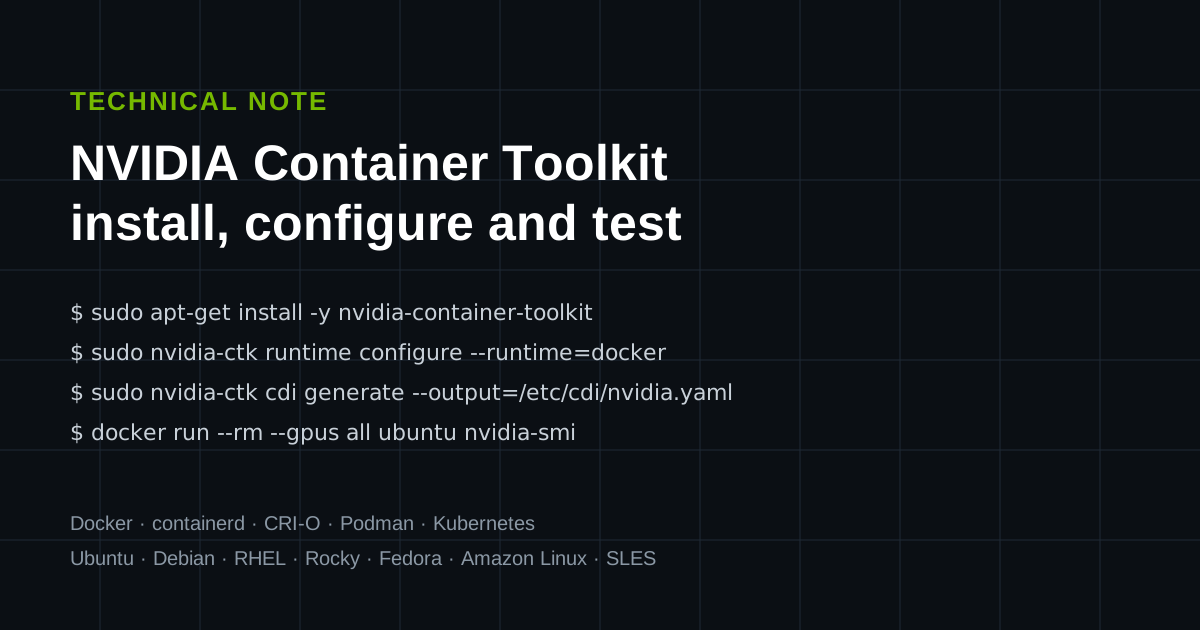
- Containers: the NVIDIA Container Toolkit, configured for your runtime.
- Orchestration: the NVIDIA GPU Operator on Kubernetes, or Slurm for batch work.
- Serving: vLLM, SGLang, TensorRT-LLM or NVIDIA NIM microservices for LLMs; Omniverse and your renderer for graphics work; RAPIDS for data science.
- Monitoring: NVIDIA DCGM with dcgm-exporter into Prometheus and Grafana.
# Container runtime (Docker shown)
sudo nvidia-ctk runtime configure --runtime=docker
sudo systemctl restart docker

# Kubernetes: the GPU Operator from NVIDIA's Helm repository
helm repo add nvidia https://helm.ngc.nvidia.com/nvidia && helm repo update
helm install --wait gpu-operator -n gpu-operator --create-namespace nvidia/gpu-operator
An OpenAI-compatible endpoint for a 70B model on two GPUs, with FP8 weights and an FP8 KV cache:
docker run --gpus '"device=0,1"' --ipc=host -p 8000:8000 \
  -v /models/hf:/root/.cache/huggingface \
  vllm/vllm-openai:latest \
  --model meta-llama/Llama-3.3-70B-Instruct \
  --tensor-parallel-size 2 \
  --quantization fp8 \
  --kv-cache-dtype fp8 \
  --max-model-len 32768 \
  --gpu-memory-utilization 0.90
Pin the image to a tested version in production rather than latest, and keep the model weights on local NVMe so restarts are quick.
9. Validating a new server
We run these checks on every system before it leaves the workshop, and again on site:
# 1. Every GPU present, at the expected memory, power limit and PCIe link
nvidia-smi --query-gpu=index,name,memory.total,power.limit,pcie.link.gen.current,pcie.link.width.current --format=csv

# 2. ECC enabled and no uncorrectable errors
nvidia-smi -q -d ECC

# 3. Topology as designed (GPU and NIC pairs under the same switch)
nvidia-smi topo -m

# 4. NVIDIA's diagnostics, long run
dcgmi diag -r 3

# 5. GPU-to-GPU bandwidth inside the server (from NVIDIA's nccl-tests)
./build/all_reduce_perf -b 8 -e 4G -f 2 -g 8
Then run a burn-in of several hours at full load, with the real inference or rendering workload if possible, while watching temperatures, clocks and power. A card that throttles in the workshop will throttle worse in a warm aisle.
Useful DCGM metrics to alert on in production: DCGM_FI_DEV_GPU_TEMP, DCGM_FI_DEV_POWER_USAGE, DCGM_FI_DEV_FB_USED, DCGM_FI_DEV_GPU_UTIL and the XID error events in the system log.
10. A rollout plan
- Benchmark (1–2 weeks). Run your models and prompts on one RTX PRO 6000 server. Record tokens per second, time to first token and memory at your real context lengths and concurrency. Decide the precision (BF16, FP8 or FP4) from accuracy on your own evaluation set.
- Size and survey (1 week). Turn the benchmark into a GPU count with headroom, then check power, cooling, network and rack space at the site.
- Build and burn in. Identical configuration for every server: firmware, BIOS settings, driver, power limit and MIG layout under configuration management.
- Pilot. One team, one service, with monitoring and an on-call route in place before users arrive.
- Scale. Add servers of the same build. Move to a fabric between servers only when a workload actually spans them.
11. Questions we're asked
Can we mix RTX PRO 6000 and L40S cards in one server? Technically yes, but don't put them in the same tensor-parallel group. Keep each model on one GPU type, and use the scheduler to place work.
Is FP4 good enough? For many instruction-tuned models with good 4-bit checkpoints, yes; for some tasks, such as code, maths and long reasoning chains, accuracy drops more. Test on your own data. FP8 is the safe default.
Can we fine-tune on it? Yes, for parameter-efficient fine-tuning (LoRA and QLoRA) of small and mid-size models, and full fine-tuning of smaller ones. For full fine-tuning of 70B-class models or pre-training, HGX systems with NVLink are the better tool.
Does it need special licences? The driver and CUDA are free. NVIDIA AI Enterprise (which includes NIM) and NVIDIA's virtual GPU software are licensed separately; open-source stacks such as vLLM don't need them.
Sources
- NVIDIA: RTX PRO 6000 Blackwell Server Edition, specifications
- AMAX: RackScale 32 with NVIDIA RTX PRO 6000 Blackwell Server Edition
- AMAX: AceleMax AXG-428AG
- AMAX: RTX PRO 6000 Blackwell Server Edition vs NVIDIA L40S
For the business case and the systems we supply, see the RTX PRO 6000 Blackwell Server Edition page and our blog post.
Trademarks. NVIDIA, the NVIDIA logo, RTX, RTX PRO, Blackwell, CUDA, NVLink, MGX, Omniverse, Spectrum-X, Quantum, BlueField, ConnectX, TensorRT, NIM and DCGM are trademarks and/or registered trademarks of NVIDIA Corporation in the US and other countries. AMAX and AceleMax are trademarks of AMAX Engineering Corporation. AMD and EPYC are trademarks of Advanced Micro Devices, Inc. Llama is a trademark of Meta Platforms, Inc. Ubuntu is a trademark of Canonical Ltd. Red Hat is a trademark of Red Hat, Inc. Kubernetes is a trademark of The Linux Foundation. Docker is a trademark of Docker, Inc. All other trademarks belong to their respective owners. Workstation is an independent supplier; no endorsement by these companies is implied. The video is NVIDIA's.